> For the complete documentation index, see [llms.txt](https://badland-batteries.gitbook.io/b/llms.txt). Markdown versions of documentation pages are available by appending `.md` to page URLs; this page is available as [Markdown](https://badland-batteries.gitbook.io/b/12s-17000mah-15c-user-manual/using-the-battery-with-mission-planner-and-ardupilot.md).
# Using the Battery with Mission Planner and Ardupilot
These instructions are for using Mission Planner with a flight controller running Ardupilot. These instructions assume the user has knowledge about using Mission Planner and Ardupilot.
**Setup**
Ensure that your flight controller is connected to the battery over CAN.
Open Mission Planner and connect to your flight controller.
Go to “CONFIG” > “Full Parameter List” and set the following parameters:
* Set CAN\_P1\_DRIVER to 1.
* Set CAN\_D1\_PROTOCOL to 1.
*NOTE:* These settings assume you are using the first CAN port on your flight controller.
Click “Write Params.”
Go to “SETUP” > “Optional Hardware” > “Battery Monitor.”
Set “Monitor” to “DroneCAN-BatteryInfo.”
Enter the battery's milliamp hour capacity into “Battery Capacity.”
If desired, check “MP Alert on Low Battery” to receive an alert when the battery is low.
Reboot your flight controller.
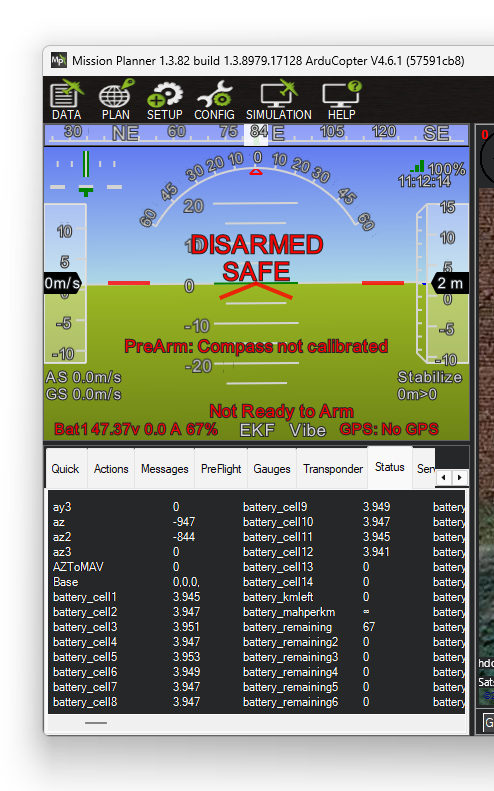
On the “DATA” page you should now see battery information on the lower left of the attitude indicator as well as in the “Status” tab.
For safety, be sure to also configure the battery related parameters as needed according to Mission Planner and Ardupilot documentation. You can, for example, have the drone automatically land when the battery gets to a certain state of charge.
**Setting Parameters**
(Parameter details are covered in the section “[Parameter Details](/b/12s-17000mah-15c-user-manual/parameter-details.md).”)
First follow the instructions in the subsection “Setup.”
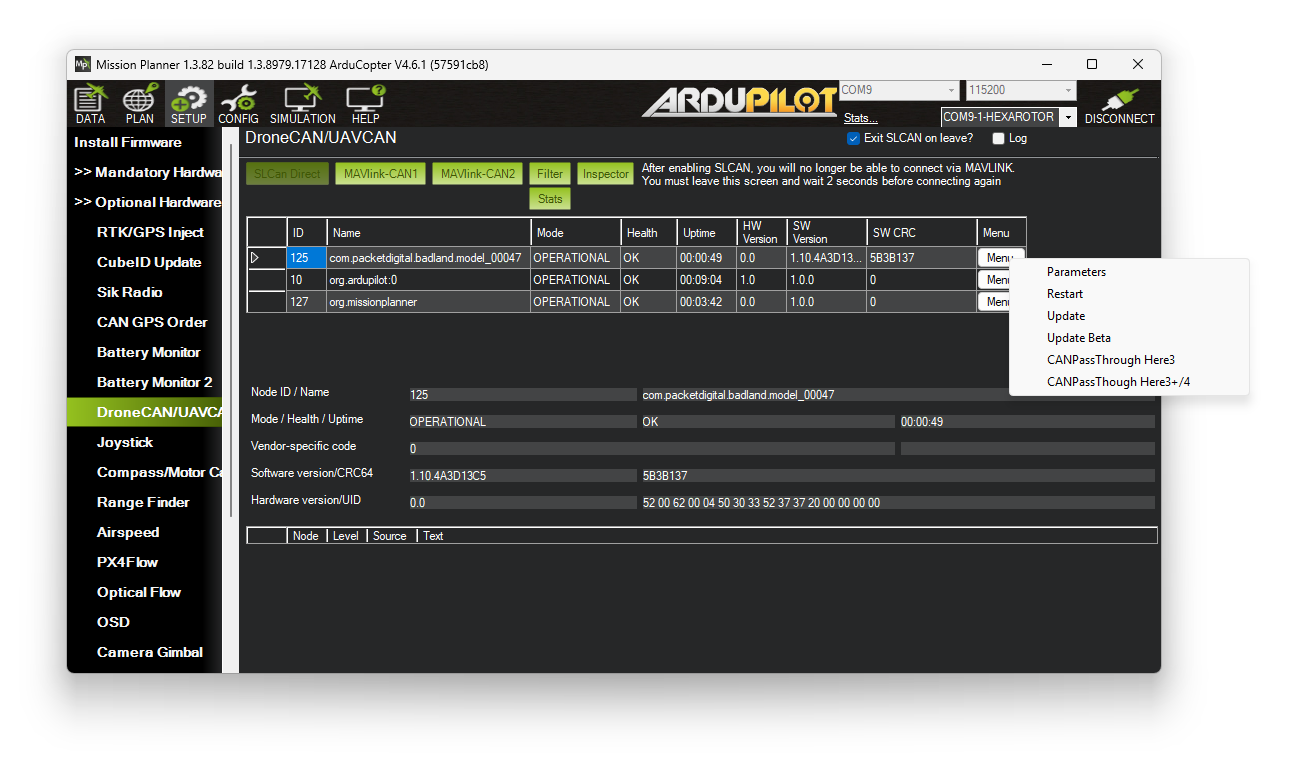
Go to “SETUP” > “Optional Hardware” > “DroneCAN/UAVCAN” and then click “MAVlink-CAN1”.
*NOTE:* This assumes you are using the flight controller’s first CAN port.
You should see the Badland battery appear. Then click “Menu” > “Parameters.”
Type a number in the “Value” box for each parameter you want to change. Then to save the parameters, click the “Write Params” button and then click the “Commit Params” button in that order.
**Updating Firmware**
First follow the instructions in the subsection “Setup.”
Go to “SETUP” > “Optional Hardware” > “DroneCAN/UAVCAN” and then click “MAVlink-CAN1”.
*NOTE:* This assumes you are using the flight controller’s first CAN port.
You should see the Badland battery appear. Then click “Menu” > “Update.”
Click “No” on the popup box. Select the firmware update file from your computer and the update will begin.
If the firmware update gets interrupted, the center LED will continue flashing on the battery. Simply start over and update the firmware again.
Never discharge or charge the battery if only the center LED is flashing, or if the LEDs won’t respond when you push the button.
[Download the latest firmware update](https://downloads.badlandsbatteries.com/1020-00047/encrypted_app_v1.14.0-0-g0cf2664.bin)
**Additional Resources**
Initial Setup\
CAN Bus Setup\
Power Module Configuration\